Guides
How to make a comic, webtoon or manga on Inkroost, step by step: from your first page to an animated episode, a published chapter and a book you can sell.
Start here
Two long guides on the craft: how to make pages that look like one artist drew them, and how to turn them into an episode.
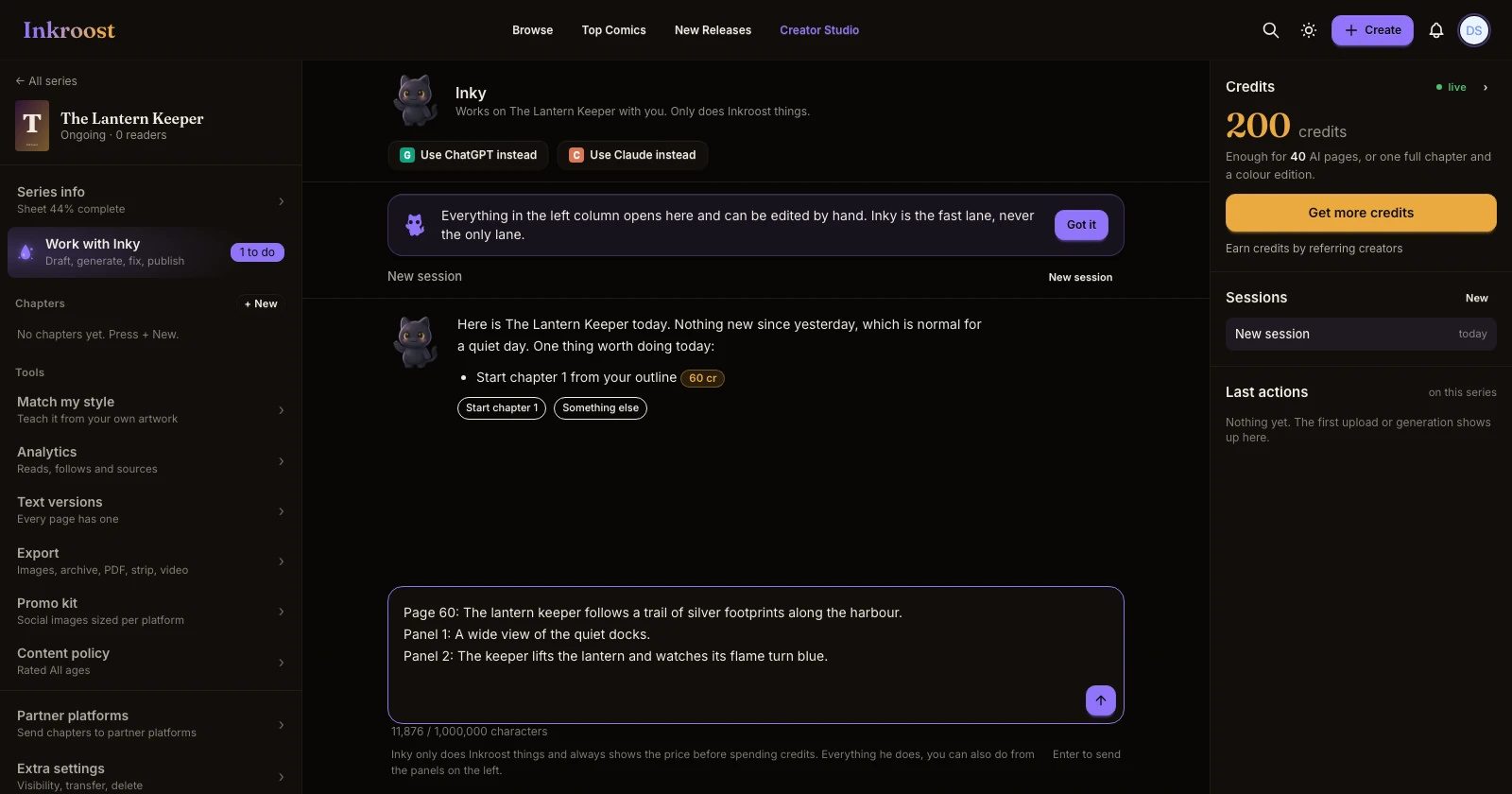
The solid workflow: sheets first, angles second, pages last
The way to make a comic that looks like one artist drew every page. Write your characters, objects and places down, set up the camera with the 3D tools, and only then draw pages. Then fix what's off with Fix an area, redraws and Pro Studio.
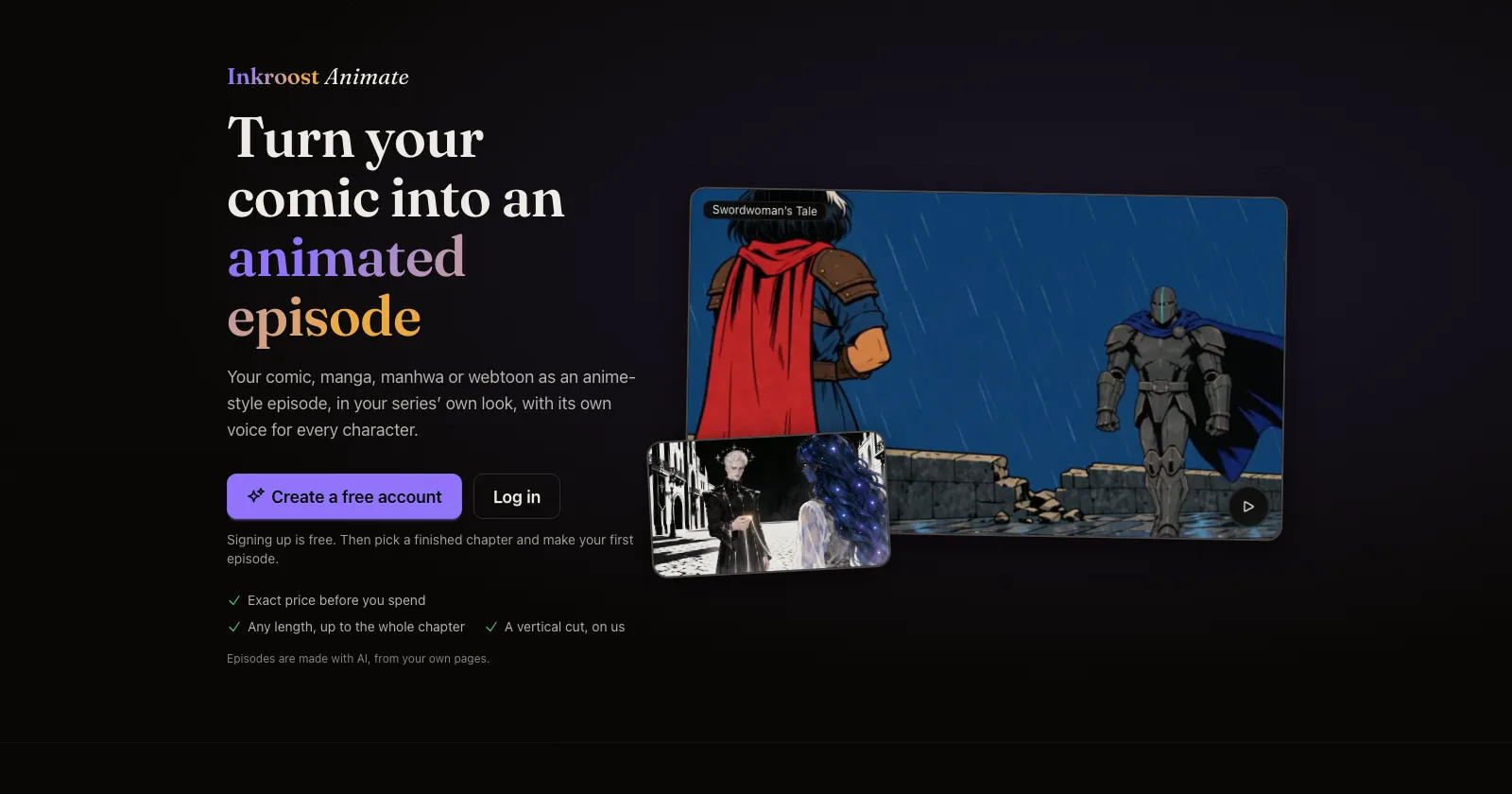
How to turn a comic chapter into an animated episode
A full walkthrough of Inkroost Animate, and the craft behind a good episode. Start from consistent pages, pick the look and the voices, shape the script for speech, choose the length and quality, check the plan and the exact price, then animate, fix scenes and publish.
Get started
From one sentence to your first drawn page.
The solid workflow: sheets first, angles second, pages last
The way to make a comic that looks like one artist drew every page. Write your characters, objects and places down, set up the camera with the 3D tools, and only then draw pages. Then fix what's off with Fix an area, redraws and Pro Studio.
How to start your first comic series on Inkroost
From one sentence to a drawn first page in a few minutes. Describe your story, pick a look, press Draw my first page, then build the rest of the chapter from there.
One sentence, one button, your first page
Starting a series with Inky is one step now. Type your idea, pick a look if you like, press Draw my first page, and page one is drawn in about two minutes. Your first cover and first banner are free.
Create now starts with Inky
Create opens on Inky's box, page one waits for a look you chose, pasted scripts are drawn page by page, and Inky checks before reusing a series name.
Style presets for every kind of comic, and always your own style
Fifteen style presets, from superhero comics to manga to European albums, each with a real sample page. Pick one for the whole series or for one run of pages, or skip them and describe your own style. Inky asks which look you want before it draws anything.
Keep characters consistent
Make faces, outfits, places and props look the same on every page.
How to keep one character the same across pages
Faces drift between generated pages until you write the character down once. Here is what a character sheet is, how Inkroost pushes it into every page that mentions her, and what to do when a page comes back wrong anyway.
How to use character, place and object sheets
Sheets are how Inkroost remembers what your cast, locations and recurring objects look like. Write them once, give them a picture, and every page that names them draws them the same way.
Inky writes the sheet before it draws the character
Every character, object and place in your story gets a complete sheet before Inky plans its pages, and Inky asks you about the ones you named instead of guessing.
Your uploaded pages fill in your characters, places and objects
When you upload a chapter you drew yourself, Inkroost reads it and adds the characters, places and objects it finds to your sheets, each with a picture cut from your own page. It costs nothing.
Style match teaches Inkroost your style from your own pages
Pick a few of your uploaded pages and Inkroost drafts a style profile and sheets from them, then draws the next page in your style.
Circle what's wrong and fix just that, plus a continuity check across your pages
Every new page is now checked against the pages before it for extra arms, wrong fingers, duplicated characters, changing backgrounds and story breaks. The best drawing is picked for you, and you can circle any area and say what to change.
Pages, panels and lettering
Draw, upload, lay out and letter your pages.
How to bring your own comic pages into Inkroost
Upload pages you drew, or drop a whole PDF of your comic. Uploading is free, pages land in order, and you can publish, translate or animate them like any other chapter.
How to letter your comic pages
Add speech bubbles, captions and sound effects right on the page, in eleven comic fonts, and keep every bubble editable. Covers and banners can carry text too.
How to turn one scene into a comic page
The whole path from a sentence in your head to a drawn page you decided to keep — what to type, what it costs, and what to do when the page comes back wrong.
Bring your comic in as a PDF
Drop a PDF of your comic or manga where you add pages, and every PDF page becomes a page of your chapter, in order. No exporting page by page first.
Pages that play with their layout
When your panels don't say how the page is laid out, Inkroost now picks a layout move for each page, like a close-up inset laid over another panel or a figure reaching out of its frame, so pages stop coming out as tidy grids.
Split a chapter into panels
Every panel of a chapter, cut out as a picture of its own in reading order and ready to download, with the option to clear the speech bubbles and text from them.
Animate your comic
Turn a chapter into an animated episode with voices, music and subtitles.
How to turn a comic chapter into an animated episode
A full walkthrough of Inkroost Animate, and the craft behind a good episode. Start from consistent pages, pick the look and the voices, shape the script for speech, choose the length and quality, check the plan and the exact price, then animate, fix scenes and publish.
How to publish your animated episode to YouTube
Connect your YouTube channel once, then send any finished episode, or its vertical cut as a Short, straight to your channel with your own title, description and audience settings.
Review and rewrite your episode's script
Before an episode is animated, you can now edit every line, change who says it and reorder the conversation, or ask the free script assistant to rewrite it for the screen.
Squeeze a whole chapter into a short episode, or keep its best moments
When you pick an episode shorter than your chapter, Inkroost Animate now asks whether to fit every page in with shorter lines, or keep only the strongest scenes word for word.
Fix a scene in your episode without making it again
Spot a wrong hand or a floating lid in your animated episode? Pick the scene on the new timeline, say what should change, and only those seconds are redrawn. Your voices, music and subtitles stay as they are.
A second animator for Standard episodes, at a lower price
Standard episodes now let you pick between our main animator and a second one that costs less and has a look of its own. Both prices are on the screen before you decide.
Publish, share and grow
Get your chapter in front of readers and bring them back.
How to publish and share a comic chapter on Inkroost
Publish a chapter in one press, let the automatic review set its rating, then share the link, make promo pictures for each platform, and see who is reading.
Promo kit and webtoon strip export
Social tiles composed from your own panels, and a vertical-scroll export for webtoon platforms.
Colour and translated editions of your chapters
Turn a finished chapter into a colour edition or a translated edition, or clean up and enlarge old scans, without touching the original.
Take your comic to an e-reader
Any series or chapter you make on Inkroost can leave as an ebook. One page per screen, edge to edge, with a cover and a contents list, ready for most e-readers and reading apps.
Make money
Supporters, ebooks and print, with the files ready to go.
How to make money with your comics
A plain guide to earning from your comics, webtoons and manga: grow readers on Inkroost, open new chapters to your Patreon supporters, and sell the finished book on Amazon KDP, Draft2Digital or Comics Authority.
How to sell your comic as an ebook or a paperback
Export your series as a Kindle ebook and a print-ready paperback interior with a cover wrap, checked against Amazon KDP's rules, then upload it to KDP yourself.
An Amazon KDP bundle, checked against KDP's rules
One download with a full-size cover, a Kindle ebook under your pen name, print files when your art is sharp enough, and a report that checks every file against KDP's published specifications.
Work from ChatGPT or Claude
Make and publish your comic without leaving your assistant.
Make a comic with ChatGPT and publish it on Inkroost
ChatGPT is good at the script. Inkroost draws the pages and publishes them. Here is how to join the two, including the parts you still do yourself.
How to make a webtoon with Claude
Connect Inkroost to Claude once, then ask for a chapter. Claude plans the pages, draws them, and hands every one back to you to approve.
Inkroost MCP: generate a manga chapter from a script
The create-inkroost-chapter workflow, tool by tool: right-to-left pages, a cost estimate before anything is charged, review, and submitting the result.
Turn your comic into an animated episode from ChatGPT or Claude
Ask ChatGPT or Claude to make an anime or a cartoon from your chapter. It shows example episodes, prices yours before anything is spent, and your first animated episode is 50% off.