How to bring your own comic pages into Inkroost
Upload pages you drew, or drop a whole PDF of your comic. Uploading is free, pages land in order, and you can publish, translate or animate them like any other chapter.
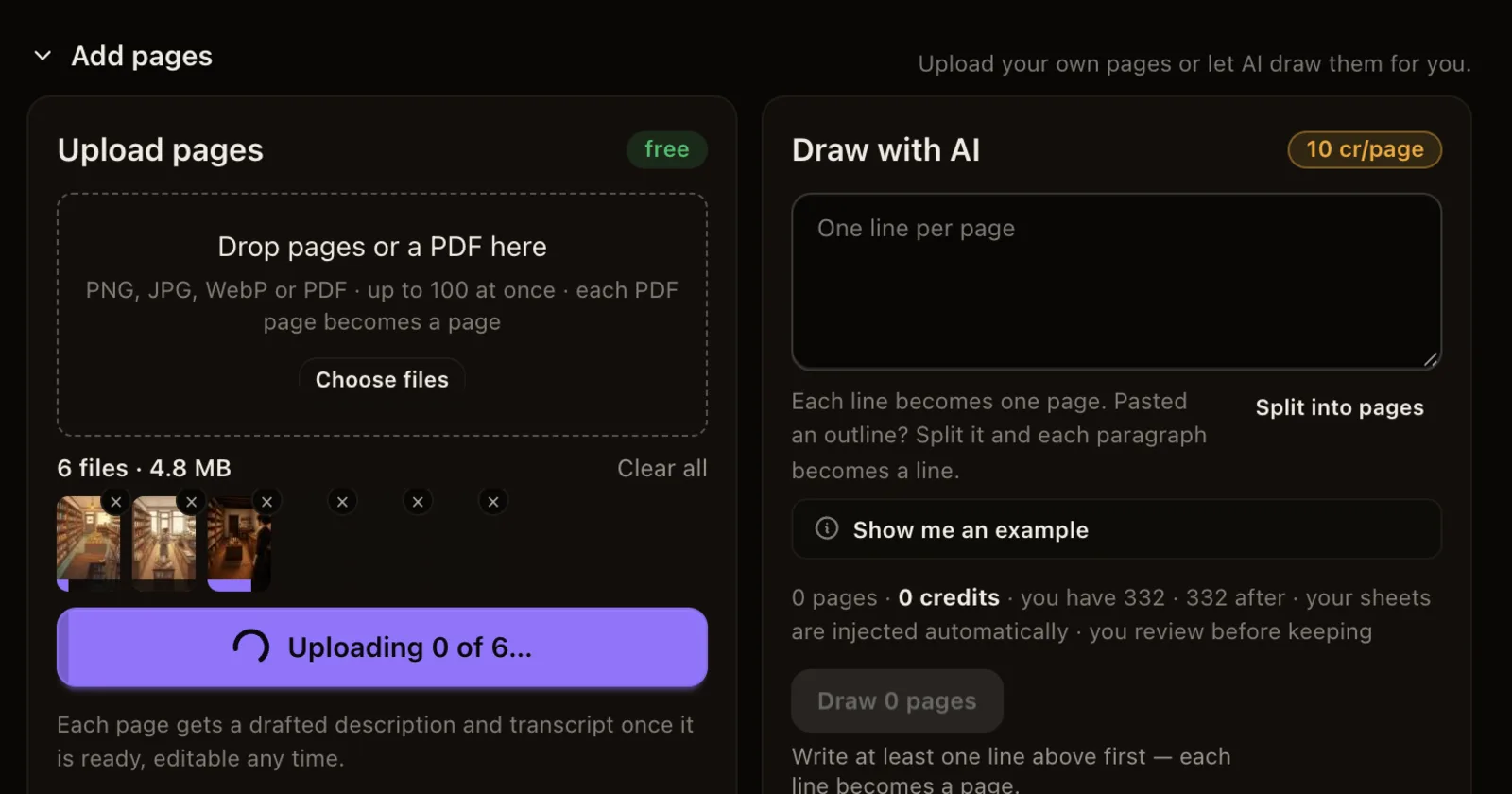
Inkroost is not only for AI pages. If you drew your comic yourself, or already have it as a PDF, bring it in as it is. Uploading your own pages is always free.
1. Open a chapter
Create a series (or open one), then open the chapter the pages belong to. A new series gets chapter 1 straight away.
2. Add the pages
Find Upload pages in the chapter (once a chapter has pages, the + Add pages tile at the end of them opens it). Drop your files on it or press Choose files.
- Pictures: PNG, JPG or WebP. Pages are ordered by file name, so name them 01, 02, 03 and so on.
- A PDF: drop the whole file. You see Preparing page 12 of 42… while each page is turned into a picture, and the pages land in the order of the PDF. The PDF is converted on your own device; only the pictures are uploaded.
Up to 100 pages fit at a time, and a PDF can be up to 100 MB. Split a longer book and add the rest afterwards. A password-protected PDF has to be saved again without the password first.
3. Check them
Each page shows whether it is still getting ready. A file that cannot be used, for example one that is too small, says why on its own tile, with Replace and Remove next to it. Use the arrows on a page to move it.
4. Publish, or keep going
When every page is ready, press Publish chapter. The chapter goes through a short automatic review and then appears for readers.
What Inkroost does with your pages
- It reads them for free and suggests sheets for the characters, places and objects it finds, so any page you add later with AI keeps them on model.
- Match my style can learn your drawing style from your own pages.
- You can make colour and translated editions, export the chapter as an ebook, or turn it into an animated episode with Animate.